Start with the equipment
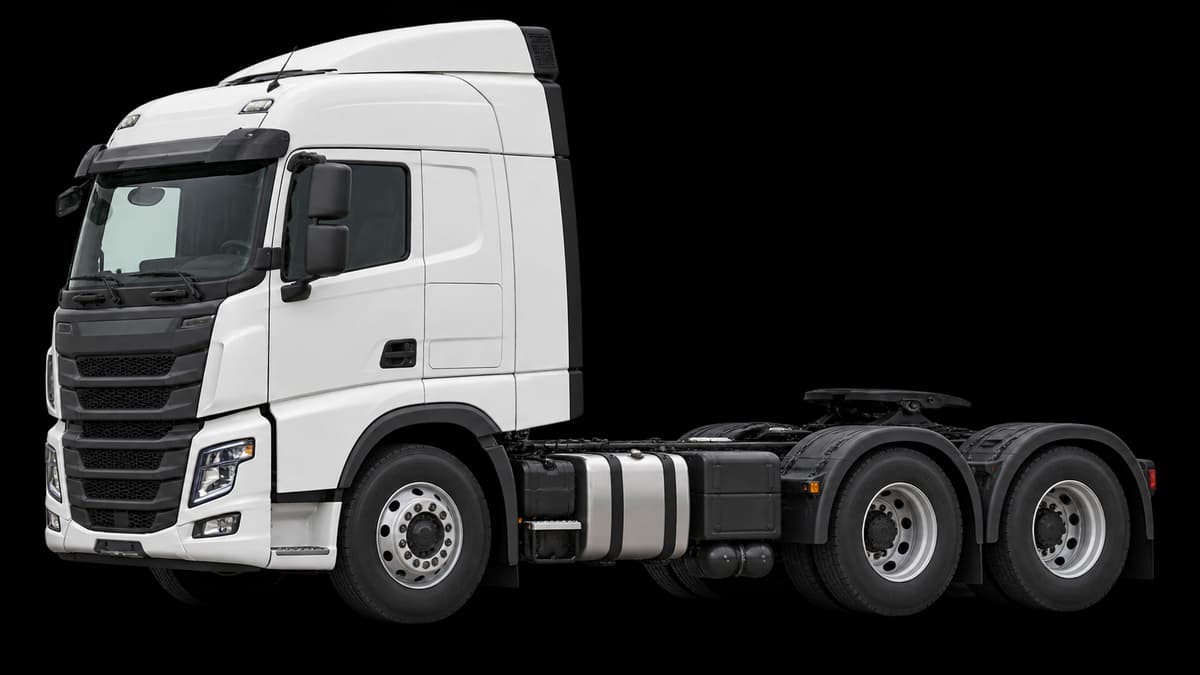 Your truckIts own measurements
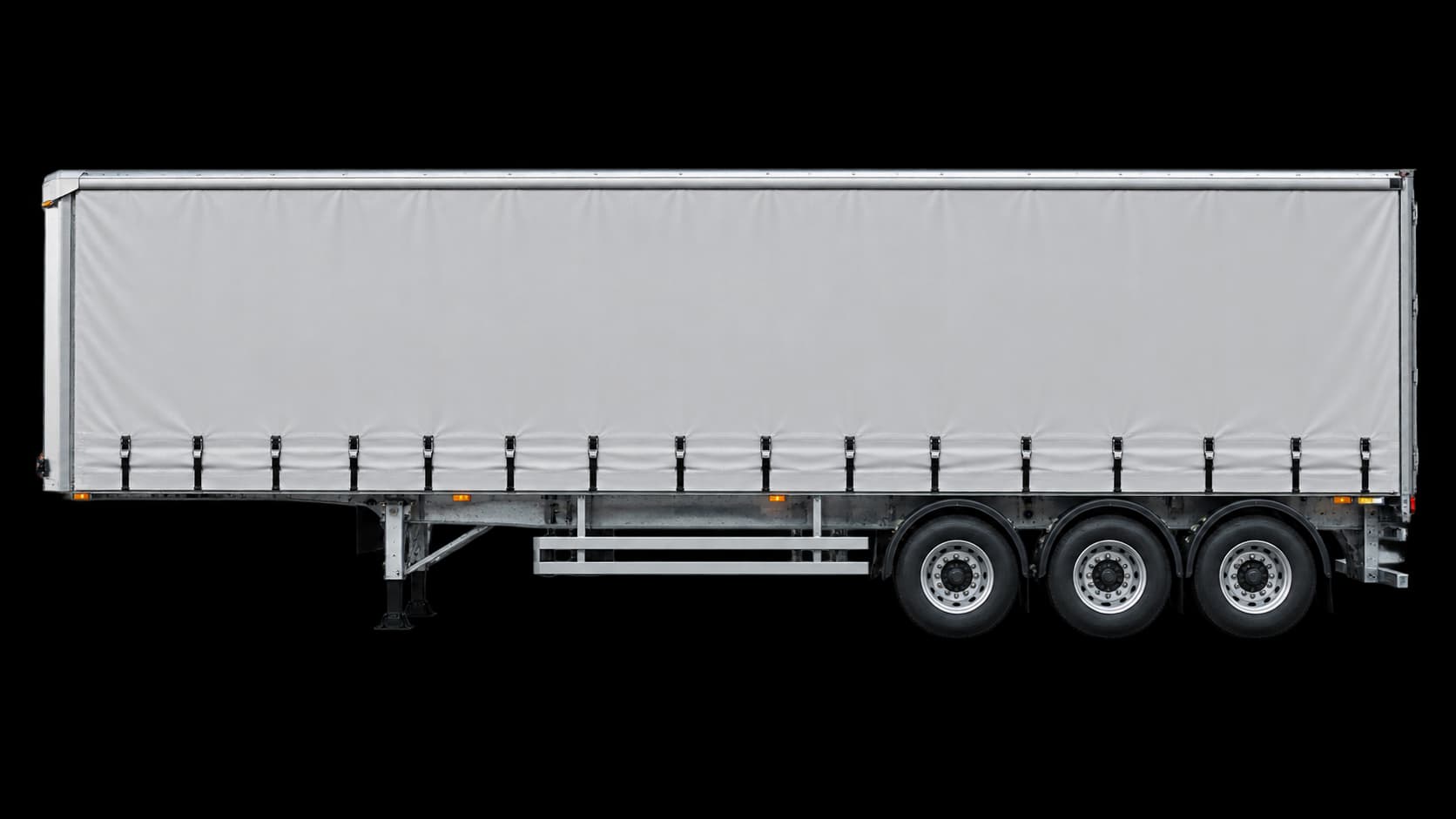 Each trailerA separate record
In My truck, keep the truck and its trailers as separate records. Measure records the truck itself; each trailing unit has its own dimensions and tare weight. A road setup brings the selected equipment together with the load for a trip.
Whether you run a rigid, a single semi, a truck and dog or pig, a B-double or a road train, the principle is the same: keep each unit’s details, then review the complete coupled setup. Body style and coupling choices do not supply measurements for you.
Understand truck types, trailers and couplings ↗Think about the complete setup
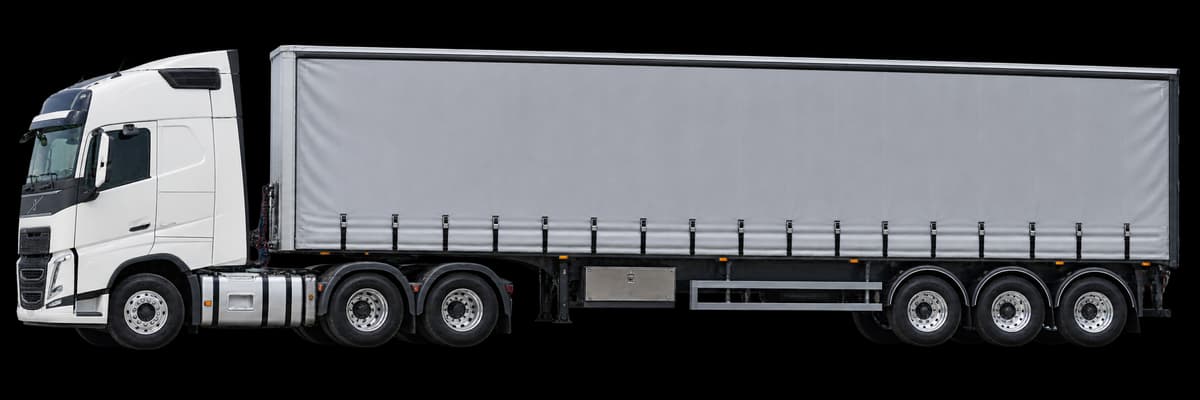
Loaded height runs from the road to the highest point, including freight. Width includes the widest part of the selected equipment or load. Overall length runs from the front to the furthest rear point, including overhang.
Do not simply add the lengths of coupled components where they overlap. Use reliable measurements and vehicle records. The app’s guidance helps you understand the fields; it does not certify your measurements or loading.
Keep mass terms separate
Tare describes empty equipment weight. Freight contributes to operating mass. A rated capacity is a limit from a vehicle record, not today’s actual loaded weight.
HeavyRoutes supports load information and measured operating mass in its setup workflow. Enter freight mass only in the load record; truck and trailer tare are added separately. A load needs a recognisable name and actual mass before route checking.
Record the heaviest single-axle mass from current axle-scale or weighbridge readings with the complete setup and its weighing reference. It is different from an axle rating, an axle-group total or total mass divided by axle count. Equipment and load changes invalidate the measurement; without current evidence, axle-specific checks remain incomplete.
Use the same load form in the library, setup wizard or Add trip load. Its measurement guide explains road-to-top loaded height, full width and freight-only mass. You can record a measured or documented source separately for freight mass and loaded dimensions, including the date measured or shown on the record and a method/reference. Changing a value clears its old source. Read these records in Measurement sources & evidence; they are driver-reported, not independently verified. Truck and trailer editors also capture separate sources for height, width, unit length and tare. Load & total dimensions captures sources for entered overall length and operating mass. Total sources belong to the equipment and freight reviewed; changes require current evidence. Entries without sources remain Entered. Axle/towing entry times are not necessarily the times physical measurements were taken.
Rigid truck and trailer: check each part
A complete operating mass below GCM can still overload the rigid truck, trailer or a coupling. Record the truck GVM, trailer ATM and payload, plus the approved trailer-mass and vertical-load limits for both fitted towing assemblies. Include the rating document references and confirm the truck's actual drawbar connection.
Use the current truck/trailer weighing check in Load & total dimensions. Enter the freight carried on the truck; the remainder is allocated to the trailer. Record each unit's coupled axle total and the imposed coupling mass. The two axle totals make up complete operating mass. Trailer total mass also includes the mass supported by the truck coupling, so do not add that mass twice to the complete total.
Confirm the current weighing reference and figures before route checking. Equipment, freight and rating changes invalidate that record, and it expires after 12 hours. The app compares entered figures with recorded limits; it does not verify axle-group limits, an engineered coupling installation or road access. D/V ratings in kN are not tonne values: use approved mass limits for the fitted application or seek advice from your equipment supplier.
Changed load? Review the setup again
A taller load or a different trailer can change the inputs for the next check. In My truck → Road setups, edit the setup and use the Review links to change the equipment or load. Return to Load & total dimensions, confirm the complete measurements, then Save & use setup before planning again.