Help & contact

A little help for the road.

Set up your equipment, check a familiar run or get help with the app. Start with an answer or an illustrated guide, and reach the HeavyRoutes team when you need a hand.

Find an answer.

Contact the team

Search your equipment, a task or a problem. You can also browse by topic.

6 of 56 answers · Common questions to get you started

Common questions

Truck & trailers

How do I build or change my road setup?

Open My truck → Road setups and choose Build setup, or edit a saved setup. Choose the truck, arrange the trailing units, then confirm Load & total dimensions. Use the Review links to change a specific part and choose Save & use setup. The active setup is the one used for the next route check.

Follow the illustrated setup guide
Truck & trailers

Where do B-doubles, road trains and truck-and-dog setups fit?

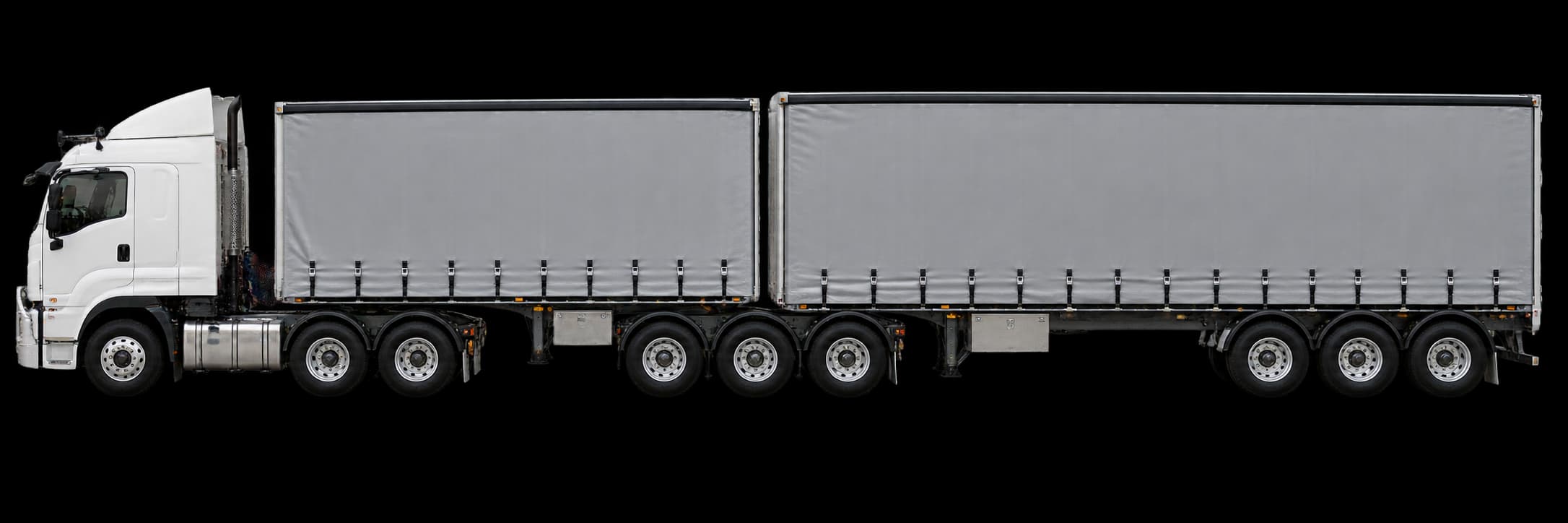
Choose the configuration that matches how your equipment is connected: truck only, single semitrailer, truck and dog, truck and pig, B-double, road train or custom. The choices depend on your truck. Add units from front to rear, including converter dollies where fitted. These choices describe equipment. B-double, road-train and custom route checks are currently unavailable pending verified network support; pilot coverage is confirmed separately.

See the configuration examples
Measurements & load

Which measurements does HeavyRoutes need?

Record the truck and each trailer’s own dimensions, tare weight and axle details. Then review the complete loaded height, width, coupled length and operating mass in Load & total dimensions. Include freight and overhang. Coupled sections overlap, so adding unit lengths is only an estimate. The pictures do not supply measurements.

Open the illustrated measurement guide
Routes & reception

How do I save a route and use it again?

Choose Save route on the route preview or finished-trip summary after its current bookmark status is available, then find and name the journey in Saved. Keep the original reference if a change needs review; the receipt and current bookmark are separate. Check the active road setup in My truck before using Plan again. The repeat-run flow returns to planning for a fresh truck and restriction check; the saved journey is a starting point for today’s run.

Read about saved journeys
Routes & reception

What works when I lose reception?

In-app help guides remain readable offline. Place search, new route checks and rerouting need a connection. Cached routes belong to the account and organisation that checked them; select the correct organisation before leaving coverage. Reconnect and check again if ownership or the assessment cannot be verified. Caching does not extend an assessment beyond its 12-hour maximum age. Opening or refreshing Jobs, where enabled, does not automatically check or prepare tomorrow’s routes. Review the actual truck and freight and request a route check while online; each successful server check uses the allowance. Where trip preparation is available, check maps and voice separately in Offline and sync before leaving coverage. Full native offline maps, voice and restart behaviour are still being validated for the pilot.

Prepare for poor reception
Pilot & support

Can I download the app or join the pilot now?

The website collects expressions of interest from Australian owner-drivers. Tell us your general region, usual configuration and phone; your main type of work is optional. We’ll contact you about suitability and availability. The EOI does not create an account or confirm a pilot place.

Register pilot interest